


April 4, 2026/
Learn how realtors in the USA generate consistent leads using SEO instead of Zillow. Build a long-term organic lead system...
Schema markup is a structured data format that helps search engines understand your content and display rich results like FAQs, reviews, and product details. By implementing schema in WordPress using plugins like Rank Math or manual JSON-LD, you can improve visibility, increase click-through rates, and prepare your site for AI-driven search.
Last Updated: 2026, April 04 | Published By Akash Gupta
Most website owners believe that ranking #1 on Google is the ultimate SEO goal. However, being at the top means absolutely nothing if searchers scroll past your link without clicking.
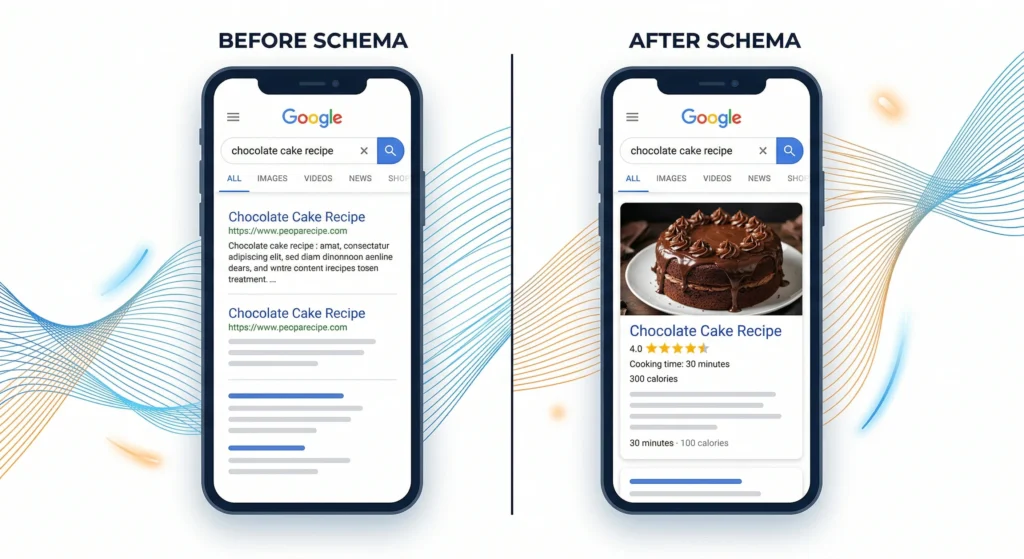
Search engines no longer display simple, plain blue links. They show dynamic answers, product ratings, recipe times, and interactive drop-down menus. If your website looks like a plain text block while your competitor features shiny gold stars, you are losing traffic before they even visit your site.
Schema markup is the invisible code that transforms your plain links into eye-catching results. In this master guide, we will break down exactly how to implement it on your WordPress site without needing a computer science degree.
Schema markup is a specialized vocabulary of code, often called structured data, that you embed into your website’s HTML. It tells search engines exactly what your content means, rather than just what words are on the page.
Adding this code translates human language into machine language. It acts as a direct database feed to search engines, ensuring they categorize your content perfectly.
Imagine you publish an article about “Apple.” Without schema, Google has to guess if you are writing about the fruit, the technology company, or a person’s name. Schema explicitly tells the algorithm that your page is a business profile or a recipe, removing all guesswork.
If acronyms like structured data, JSON-LD, and SERPs sound confusing, lay a solid foundation by exploring our complete guide to essential SEO terms for 2026.
The primary benefit of adding schema to WordPress is the generation of “Rich Snippets.” These are enhanced search engine listings that display extra visual information right on the results page.
Rich snippets drastically increase your Click-Through Rate (CTR) by making your listing visually prominent. Even if you rank in the third position, a listing with review stars and product prices will often steal clicks from the plain number one spot.
Here are the most common rich snippets you can unlock:
Review Snippets — Displays aggregate star ratings and the total number of reviews to build instant trust with searchers.
Product Snippets — Shows live pricing, stock availability, and shipping details directly in the search results for e-commerce pages.
Recipe Snippets — Highlights cooking time, calorie counts, and a mouth-watering thumbnail image to entice clicks.
There are two primary paths to adding schema in WordPress: utilizing an automated SEO plugin or manually injecting JSON-LD code into your website’s header.
For 99% of WordPress users, plugins are the safest and most efficient choice. They automatically generate error-free code, save you hundreds of hours of manual work, and prevent accidental website crashes caused by broken scripts.
Top tools for the job include:
Rank Math SEO — A highly recommended, comprehensive plugin that includes an advanced Schema Generator completely for free.
Yoast SEO — Handles basic automated schema well, though advanced types like recipes and FAQs require a premium upgrade.
WPCode — A lightweight plugin used for the manual injection of custom JSON-LD scripts if you decide not to use a dedicated SEO plugin.
While plugins like Rank Math handle your schema, pairing them with modern AI SEO tools can fully automate your technical optimization and content strategy.

Learn how realtors in the USA generate consistent leads using SEO instead of Zillow. Build a long-term organic lead system...

Learn how to add schema markup in WordPress step-by-step. Boost CTR, get rich snippets, and improve SEO with structured data...
This is the recommended approach for most users. Rank Math automates the heavy lifting and integrates perfectly with the WordPress editor.
Navigate to your WordPress dashboard, go to Plugins > Add New, and search for Rank Math SEO. Install and activate it, then follow the setup wizard to establish your site’s core identity (e.g., Personal Blog or Business).
Once installed, go to the Rank Math Dashboard. Scroll down to the “Schema (Structured Data)” module and ensure the toggle is flipped to the ON position.
You want every new post to automatically get basic schema applied. Navigate to Titles & Meta > Posts, and set your Default Schema Type to “Article” or “Blog Posting.” Save your changes to apply this across your site.
Sometimes you need specialized schema on a specific page, like a product review. Inside the WordPress post editor, click the Rank Math score icon in the top right, select the Schema tab, and click “Schema Generator” to select your exact format.
Once your foundation is set, you can start adding specialized schema types to capture more space on the search engine results page.
Breadcrumbs are the small navigation paths (e.g., Home > Services > SEO) that help users understand where they are. Breadcrumb schema allows Google to replace an ugly URL string with a clean, clickable path directly in the search results.
In Rank Math, navigate to General Settings > Breadcrumbs and toggle the feature on. The plugin will immediately start writing the hidden structured data into your site’s code to make your listings look highly professional.
FAQ schema identifies specific questions and answers within your content. This is critical for the modern AI era, as platforms like Perplexity and Google’s AI Overviews actively look for structured Q&A data to pull direct answers.
In the standard WordPress block editor, add a new block and search for “FAQ by Rank Math.” Type your questions and answers directly into this visual block. The plugin automatically formats it for readers and wraps it in valid JSON-LD code for bots.
How-To schema is designed specifically for content that provides a step-by-step tutorial. Applying this schema makes you eligible for rich visual experiences, allowing Google to extract your steps into a numbered list or a swipeable image carousel.
Add the “HowTo by Rank Math” block inside the editor. Fill out the introduction, list your steps, and attach a relevant image to each one to build a highly engaging search result.

If you prefer Yoast SEO over Rank Math, you are in good hands. Yoast is one of the most reliable plugins for automatically generating structured data behind the scenes.
It uniquely builds a unified “schema graph” for your site. This means it seamlessly connects your organization data, your author profile, and your article content into one interconnected package that search engines love.
Here is how to set it up perfectly:
Install and activate the Yoast SEO plugin from your WordPress dashboard. Immediately navigate to the “First-time SEO configuration” workout located in the general settings.
This setup is absolutely crucial because it establishes your foundational “Organization” or “Person” schema. You will add your official logo, social profiles, and brand name here so Google immediately recognizes your official entity.
By default, Yoast automatically applies standard “WebPage” and “Article” schema to every new blog post. You can verify or change these defaults without writing any code.
Go to Yoast SEO > Settings > Content Types. Click on “Posts” and scroll down to the Schema section to ensure your default page type and article type perfectly match your content strategy.
Sometimes a specific page needs a different classification, like a “Contact Page,” “Checkout Page,” or an “About Page.”
Open your specific WordPress post and scroll down to the Yoast SEO meta box below the main text editor. Click on the “Schema” tab to manually override the sitewide defaults and select the exact data type you need for that specific piece of content.
To capture more space on the search engine results page, you must use specialized rich snippets. Yoast makes this easy by providing custom Gutenberg blocks.
When writing a tutorial or answering common questions, add a new block in the editor and search for “Yoast FAQ” or “Yoast How-To.” Type your text directly into these blocks, and the plugin will instantly translate your visible content into flawless JSON-LD code for search bots.

If you have highly customized, niche schema needs—like complex medical entities or specific course listings—that standard SEO plugins do not support, you will need to add it manually.
Google prefers JSON-LD (JavaScript Object Notation for Linked Data) for this process.
Generate your code: Use a free tool like Merkle’s Schema Markup Generator to build your custom script without coding it from scratch.
Copy the script: Copy the generated block of JSON-LD code.
Inject it into WordPress: Install the free “WPCode” plugin. Open the specific WordPress post you want to mark up, scroll to the WPCode box at the bottom, paste your code into the “Header” section, and update the page.
Search engine algorithms are incredibly strict. If your schema has a single typo, a missing comma, or lacks a required image field, Google will ignore the entire block of code.
Once your WordPress post is published, copy the live URL. Paste that link into the official Google Rich Results Test tool.
The tool will scan your page and show a green checkmark for valid schema. If it finds an error, it will highlight the exact line of code so you can fix it in your WordPress dashboard before Google crawls it.
The internet is rapidly shifting away from matching simple keywords to understanding complex concepts and entities. Search engines and AI agents no longer want to guess what your page is about; they expect you to tell them definitively.
By implementing schema markup today, you are doing more than just chasing higher click-through rates. You are building a semantic bridge that allows the next generation of AI tools to read, understand, and accurately cite your content in the future.

Rank Math SEO and Yoast SEO are currently top choices for most users. They provide advanced schema types like FAQ, How-To, and Local Business completely free, whereas many competitors charge for these features.
Schema is not a direct ranking factor in the same way backlinks are. However, it significantly improves your click-through rate, and search engines eventually reward pages that get higher engagement with better rankings.
Not necessarily, but almost every page benefits from it. At a minimum, every post should have basic “WebPage” or “Article” schema so search engines can easily categorize the format of your content.
JSON-LD stands for JavaScript Object Notation for Linked Data. It is the lightweight script format that Google officially recommends for adding structured data to your website without breaking your visual design.
Google never guarantees that rich snippets will display, even if your code is 100% valid. They may withhold snippets if your site lacks overall authority or if they suspect the reviews are fake or self-serving.
Schema.org is the universal dictionary of terms used by search engines to understand data. Microdata is an older, clunky way of adding those terms directly into HTML, whereas JSON-LD is the modern, preferred script method.
No, it will not negatively impact your performance. JSON-LD code is extremely lightweight text that loads in the background and does not require the browser to download heavy visual assets.
Yes, and doing so is highly encouraged to give Google maximum context. A single comprehensive blog post might feature “Article” schema for the main text, and “FAQ” schema at the bottom.
Organization schema tells search engines the foundational details about your business identity. It links your brand name to your official logo, contact information, and social media profiles to help build a Knowledge Graph.
It can take anywhere from a few days to a few weeks. Google must first recrawl your updated page, process the new structured data, and then decide if your site is trustworthy enough to display the visual snippets.